
Make a little.
Share what you learn.
You do not need a finished game to belong here. Try one lesson, make one small change, and share what happened. The guides, downloads and community are free.
Read and play without an account. Sign in when you want to save practice progress, publish a project or post in the forum. Screenshots below use a demonstration account and practice draft; they contain no member’s private work.
Choose your public maker name.
Choose Log in, then Sign in with ChatGPT. On your first visit back, choose a username of 3–24 letters, numbers or underscores. Read the community guidelines and privacy information before creating your free maker account.
This name appears beside your posts and public projects. Your email stays private. ChatGPT handles sign-in and password recovery; First Play Studios does not receive your ChatGPT conversations.
Open the project workspace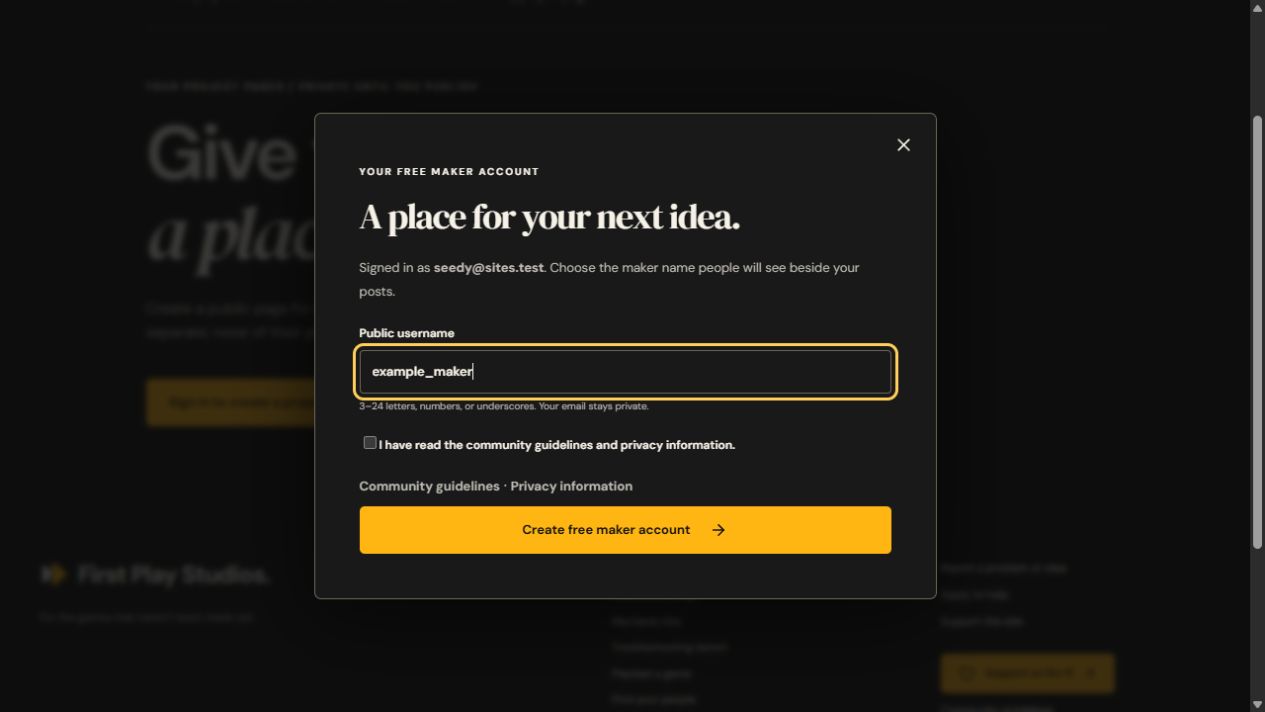
Start with a room you can change.
Open lesson one of One Small Delivery. Download checkpoint 01, extract the ZIP, and import its project.godot file in Godot 4.7.2 standard edition. Follow the lesson to run the room and change its floor color.
Keep working in your own extracted folder as you continue. Later checkpoint downloads contain the completed version of their lesson, for comparison or recovery. Mark a lesson complete only after running its checks and observing the result.
Need an explanation? Copy the lesson prompt into your own ChatGPT, include what you observed, and ask about one small step. Avoid sharing credentials or private files.
Prefer a browser-only beginning? Try the beginner journey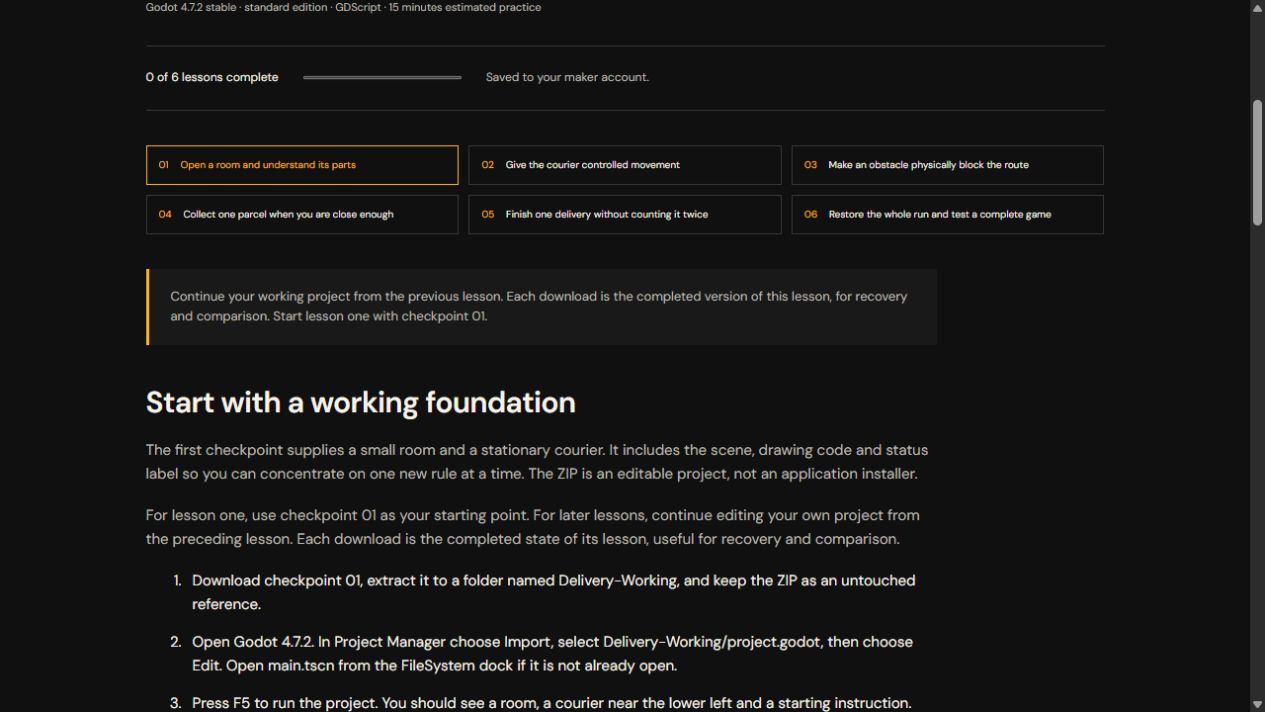
Give one small thing a private draft.
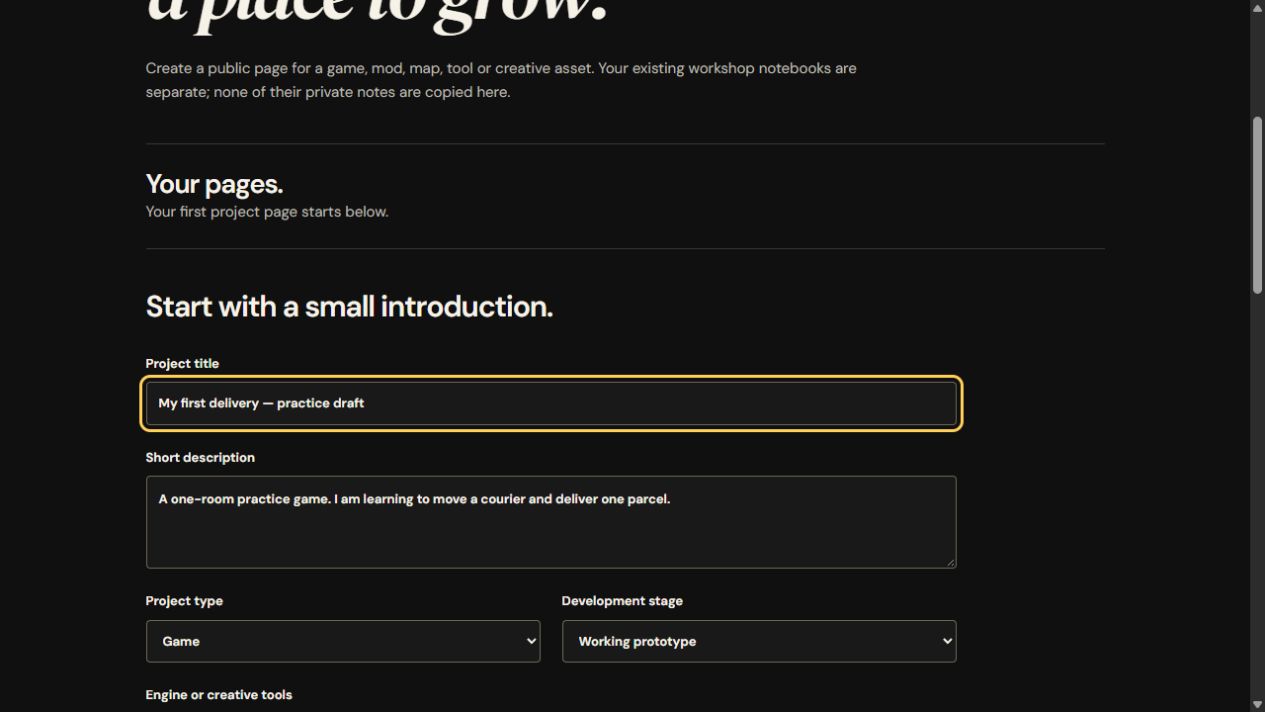
Open My project pages. Add a working title, short description, project type, stage and the tools you use. Explain what works so far and ask for one useful kind of feedback.
A screenshot and public HTTPS build link are optional. Use an image you have permission to share and describe it for people who cannot see it. Choose Save private draft. A project page starts private, and your separate workshop notebooks are never copied into it.
The gallery checkbox is optional permission for the owner to feature your project after you publish. It does not publish the draft or guarantee a feature.
Read the saved page before sharing.
Expand Preview the saved page. Check the title, image, description, links and feedback question. Save any further edits before reviewing again: the preview shows the saved version.
When ready, check I have reviewed the saved page and want it to be public, then choose Publish project page. Your maker name, project details, image and links become visible to visitors. You can stay in draft for as long as you like.
After publishing, add a short progress update: what changed, what you checked and the next useful step. Returning the page to a private draft removes its public page and image access; existing forum conversations remain public and must be reviewed separately.
Read Courier’s Corner’s real example page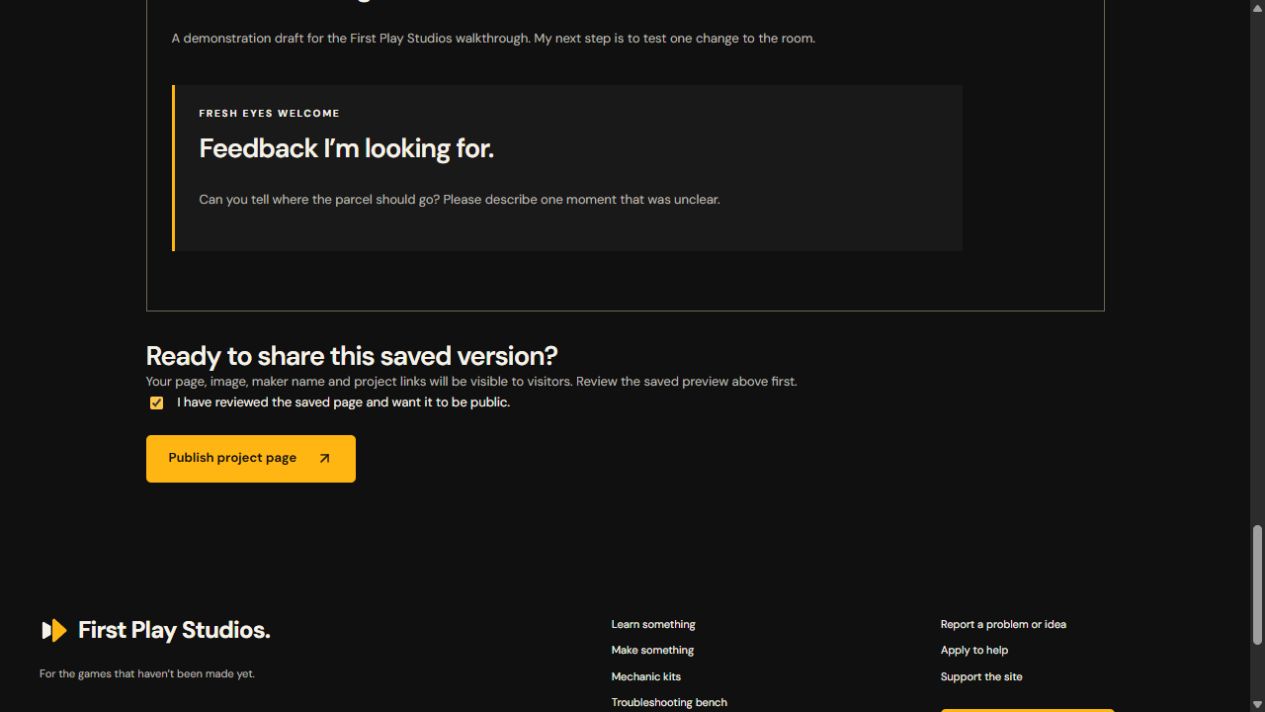
Tell us what you tried.
Use Open or create my forum discussion on a published project to connect its page to a conversation. For a lesson problem, use Ask the workshop forum; it starts a question with the lesson context.
Include your tool and version, the result you expected, what happened and what you already checked. A small, specific question is easier to help with than an entire project.
If a reply solves your question, test the suggestion first. The topic author can select an accepted answer on a question. That highlights the useful reply for the next reader; it does not certify every suggestion in the conversation.